Text Editing and Writing to Files
GNU nano is a text editor for Unix-like environments or other operating environments using a command line/ terminal interface. Nano can also be used with pointing devices, such as a mouse to activate toolbar functions and position a cursor. Other file editing tools are available such as Emacs, vi and pico, but for the purposes of this example we’ll use the easy to use nano text editor.
To demonstrate creating a new file in nano, open a terminal and type the following example. This example creates a new file called fruit.txt
nano fruit.txt
The nano editor will launch and it’s now possible to type freely within the window.
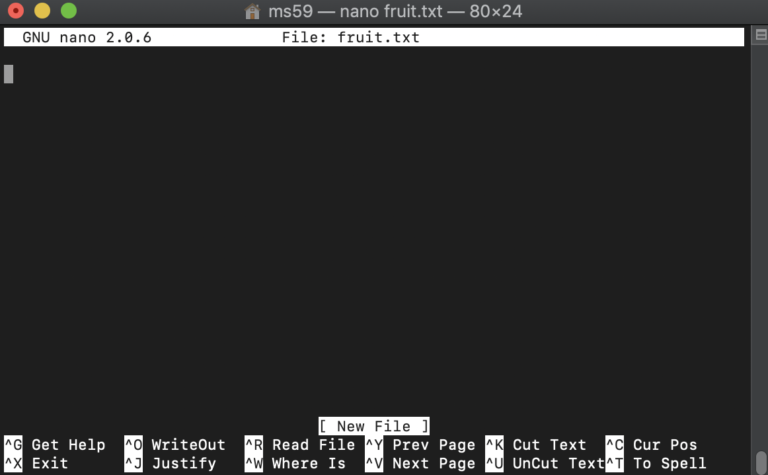
Now enter the following data and hit the enter key after each item.
Orange, Pear, Apple, Banana, Grape, Satsuma, Melon
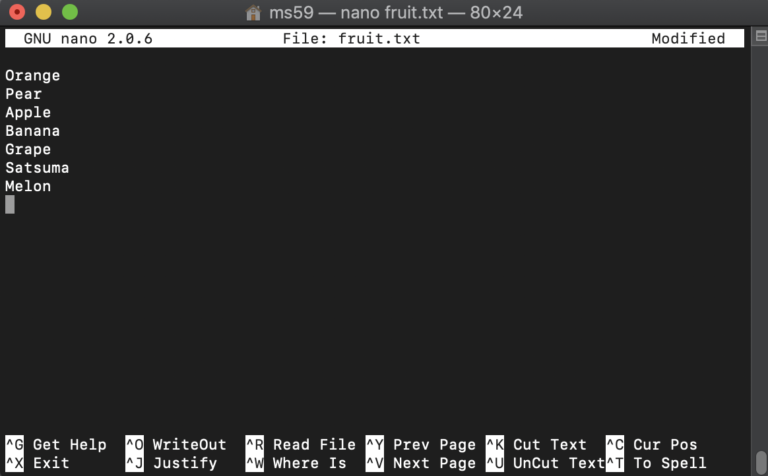
Select control-x to Exit the nano editor and type y
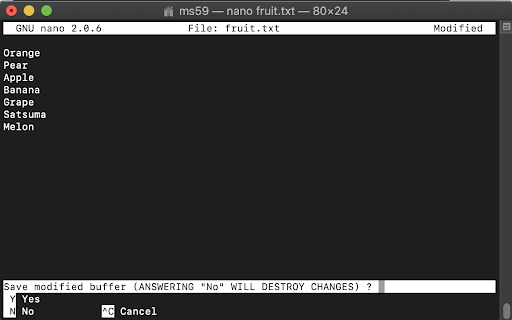
A prompt to save the file will appear. Press the enter key to save and this will write the file to disk.
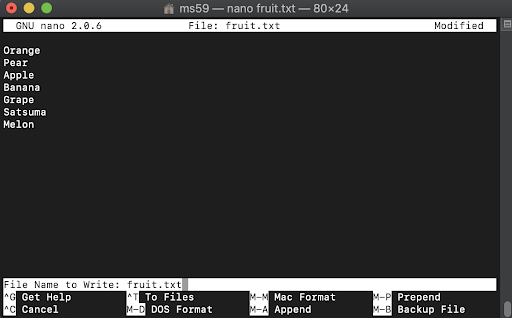
This will return you back to the terminal window. Typing ls will show you the new fruit.txt file you have created.
Type
ls
This will display the fruit.txt file that you have created.
Nano has a wide range of editing capabilities, which are highlighted in the link below.
https://www.nano-editor.org/dist/v2.2/nano.html
Bioinformatics for Biologists: An Introduction to Linux, Bash Scripting, and R


Bioinformatics for Biologists: An Introduction to Linux, Bash Scripting, and R